Every feature, explained.
What each module does, how to turn it on, and how to use it. No marketing puff. Just the facts, so you know exactly what you're getting.
Jump to
- Core (always on)
- Fixtures & availability
- Host a match day (round-robin)
- Training
- Squad
- Start a new season
- Lineup builder
- Fixture & lineup templates
- Live match recording
- Match report
- Chat
- Newsfeed
- Stats
- Squadd Wrapped
- Character Sticker Book
- Calendar sync
- Member invites
- Team modules
- Match-day takeover
- Shirt numbers
- Volunteer tasks
- Photo gallery
- Subs & payments
- Player of the Match
- Parents' Player of the Match
- Team sides
- Fair-play helpers
- Golden Boot
- Goalkeeper recognition
- FAW & COMET reminders
- Detailed positions
Settings → Team modules → Customise features. Only a team admin can change them. Defaults shown reflect what a brand-new team starts with.
Core features
These are always on: the spine of the app. No toggles, no setup beyond creating your team.
Senior & adult teams
Always onSquadd isn't just for youth football. Pick "Adults (senior)" when you create your team and the whole app speaks senior, no parents required.
What it does
- Players get their own logins: each player sets their own availability, sees fixtures, and gets their own season stats (goals, assists, minutes)
- One link onboards the whole squad: drop the player invite in your team WhatsApp; everyone signs up, confirms their name, and you approve them on
- If you've already built the squad list, a player who signs up is matched to their existing record, goals and minutes history intact
- Everything else works exactly the same: fixtures, lineups, live match recording, subs tracking, season stats, team chat
- Switch an existing team to senior any time under Settings → Edit team details
How to use it
- Create your team and choose Adults (senior), or flip an existing team in Settings → Edit team details
- Go to Settings → Invite Members → Quick player invite and drop the link in your squad's group chat
- Approve each player as they confirm their name. Done
Fixtures & availability
Always onPost upcoming matches, collect yes/no/maybe from parents, see at a glance who you've got.
What it does
- Create a single match or a match day containing multiple back-to-back fixtures (tournament or festival format)
- Tag each fixture as League, Cup, Friendly or Tournament: the tag drives season stats filtering and (for FAW teams) COMET reminders
- Each fixture has opponent, date, kick-off, venue, home/away, optional meet-at-pitch time
- Kick-off Time TBC: publish the fixture as soon as the date is set even if the league hasn't released the time. Parents see "Time TBC" instead of a placeholder time, and Squadd nudges you to update it once the slot is confirmed
- Parents respond Available / Unavailable / Maybe for their child
- Coach sees a live count of unanswered parents and can nudge them with one tap
- Edit the fixture after creation: date, time and location changes trigger an optional push notification to every parent
How to use it
- Tap the Fixtures tab → + New
- Choose Single match or Match day
- Fill in opponent, date, time, location (postcode lookup included)
- Parents get a push when the fixture is published
Host a match day (round-robin schedule builder)
Always onRunning a tournament, festival or in-house friendly day? Feed in the teams, pitches and timings and Squadd builds the full schedule, then turns it into a match day you can run from the app.
What it does
- Generates a round-robin schedule (every team plays every other team) for 2 to 16 teams
- Distributes matches across 1 to 8 parallel pitches
- Configurable match duration (10 / 15 / 20 / 25 / 30 min presets), optional half-time, break between matches, and first kick-off time
- Automatically handles byes: when you have an odd number of teams, the planner shows who's resting each round so you can keep the schedule fair
- Shows a summary card: total matches, total rounds, total time slots, and the finish time so you know exactly when the day wraps
- Visual schedule grid colour-coded by round, with every kick-off time, pitch number and fixture
- Share: copies a text-formatted schedule to your clipboard (or opens the iOS/Android share sheet) so you can paste it straight into WhatsApp or email for other clubs
- Create match day: one tap turns the whole schedule into a real match day in Squadd, with each round-robin fixture created individually, location and pitch number filled in, and notes tagging which round it belongs to. From there it behaves like any other match day: availability, lineups, live recording, reports.
How to use it
- Tap the Fixtures tab, then + and Host a match day
- Fill in the event name, date, location/postcode, and format (3v3 / 5v5 / 6v6 / 7v7 / 9v9 / 11v11)
- Add the participating teams (your team plus visitors)
- Set match duration, break between games, first kick-off, and number of pitches
- Tap Generate schedule, then review the visual grid
- Tap Share schedule to send to other clubs, or Create match day to turn it into real fixtures inside Squadd
Good to know
- It's a single round-robin generator: every team plays every other team once. If you want knockouts or a final after the round-robin, create those fixtures manually inside the match day once it's built.
- Match day fixtures use neutral home/away (it's a festival, no one's home), and each gets "Pitch N" appended to its location so parents know where to stand.
Training
Always onSchedule one-off or recurring training sessions. Collect availability the same way as fixtures.
What it does
- One-off session, or a recurring weekly schedule
- Availability collected per session
- Cancel a session and parents get a push notification explaining why
How to use it
- Tap the Training tab → + New
- For a recurring slot, set it up once under Schedule
Squad management
Always onYour player roster, plus long-term injury / absence tracking.
What it does
- Add / edit / remove players
- Link players to parent accounts via invite codes
- Mark a player as unavailable for a date range (injury, holiday, exam period) and they're auto-excluded from availability prompts for that window
How to use it
- Tap the Squad tab to see every player
- Tap a player → edit details, or open their Unavailability screen to log a window
Multiple parents on one child
Mum, dad, stepparent, grandparent: common, and there's a clean process for it. The first parent (or the coach) creates the player. Each additional parent then signs up with the team invite code and uses Add My Child, entering the child's exact existing name. Squadd detects the duplicate and raises a Link Request for the coach to approve.
The coach reviews from Squad → Link Requests with three buttons:
- Merge: link the parent as an additional guardian. Use for genuine second-parent cases.
- Create new: make a separate player despite the name match. Only if it's actually a different child.
- Reject: dismiss the request. Use if the person isn't a guardian.
Once merged, both parents see the same fixtures, can both respond to availability, and both get the child's notifications. The coach mental model: "I never add parents myself. I add or approve players. Parents add themselves to players via Add My Child, and I just review the queue."
The full workflow is also documented in the app: open the Squad tab and tap the ? icon in the header.
Start a new season
Always onOne tap rolls your team into next season: last year's stats and Wrapped data are archived, the new season starts clean, and you can bump the age group at the same time.
What it does
- Archives the old season: every player's stats, sticker tallies and Wrapped numbers are snapshotted so you can revisit them later
- Rolls the season start date forward: Stats and the Golden Boot start from zero, training history stays intact
- Optional age group bump: U10s → U11s in the same step, no need to rebuild the team or re-invite parents
- Resets Squadd Wrapped so the new season starts clean
- Players, parents, fixtures and the team chat all carry over untouched
How to use it
Settings → Start new season(team admin only)- Pick the new season's start date and, if relevant, the new age group
- Confirm. Squadd archives, resets and you're ready for pre-season
Good to know
The old season is snapshotted permanently into the archive. Once you start a new season, current-season stats reset to zero from the new start date. Don't run it mid-season unless you mean to.
Lineup builder
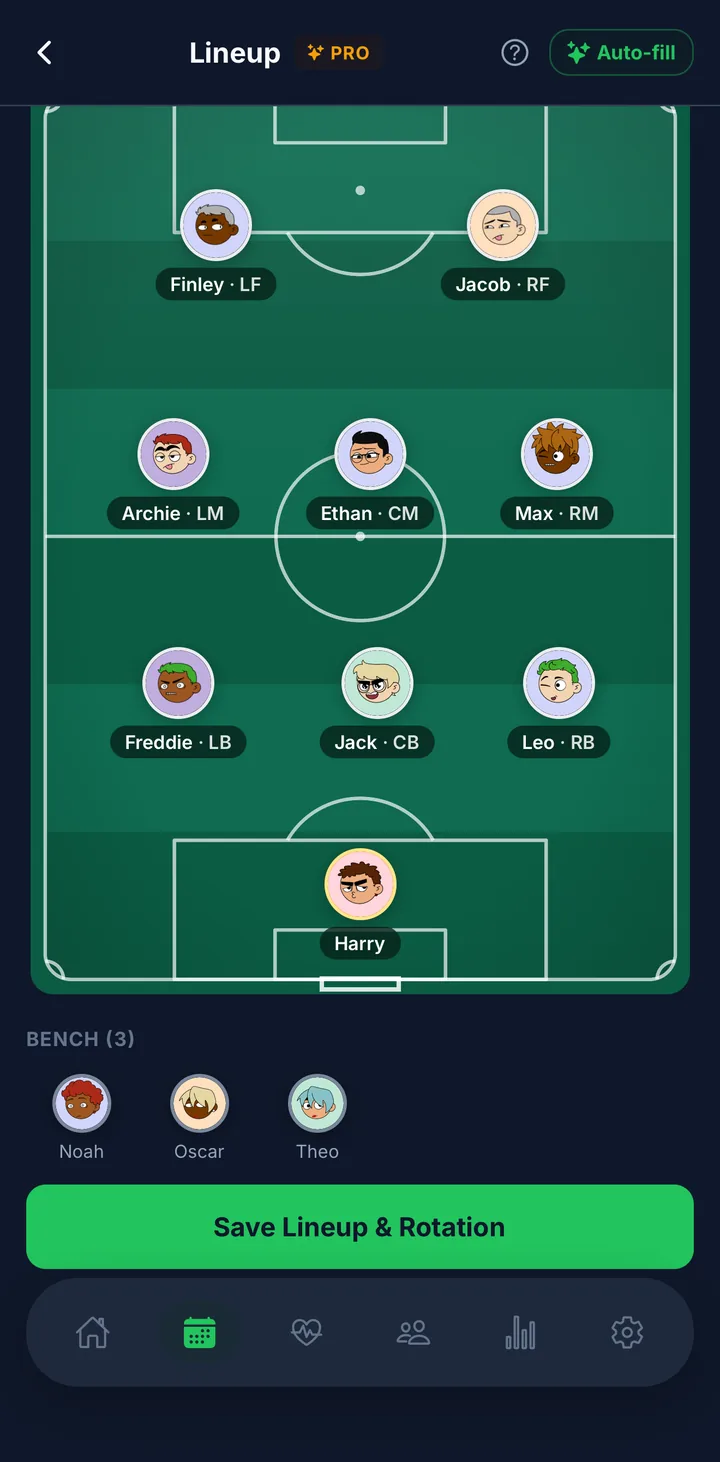
ProDrag-and-drop starting XI and bench on a pitch view. Your default formation pre-populates the shape.
What it does
- Visual pitch with formation shape (e.g. 4-3-3, 3-2-3 for 9v9)
- Tap a slot to assign a player; tap again to swap
- Presets for 3v3, 5v5, 7v7, 9v9 and 11v11
- Save as your fixture's planned lineup before kick-off
How to use it
- Open a fixture → tap Lineup
- Pick a formation from the presets or use your team default
- Tap each slot to assign a player from the available squad
Related setting
Settings → Default formation sets which shape new fixtures start with.
Fixture & lineup templates
Always onSave once, reuse forever. Recurring opponent? Favourite formation? Stop re-typing them every week.
What it does
- Fixture templates: save an opponent, venue, home/away, format and half-duration as a named template (kick-off time stays per-fixture so you can reuse them every week)
- Lineup templates: save a formation with starting XI and bench positions, then apply to any fixture in one tap
- Templates are per-team, so co-coaches share them automatically
- Delete a template any time: fixtures and lineups already built from it stay untouched
How to use it
- On any existing fixture, tap Save as template and Squadd names it vs Opponent by default
- Next time you tap New Fixture, a From template row appears at the top. Tap a chip and the form fills itself in
- Same flow for lineups: build one, tap Save as template, then apply from the chip row on any future lineup screen
Live match recording
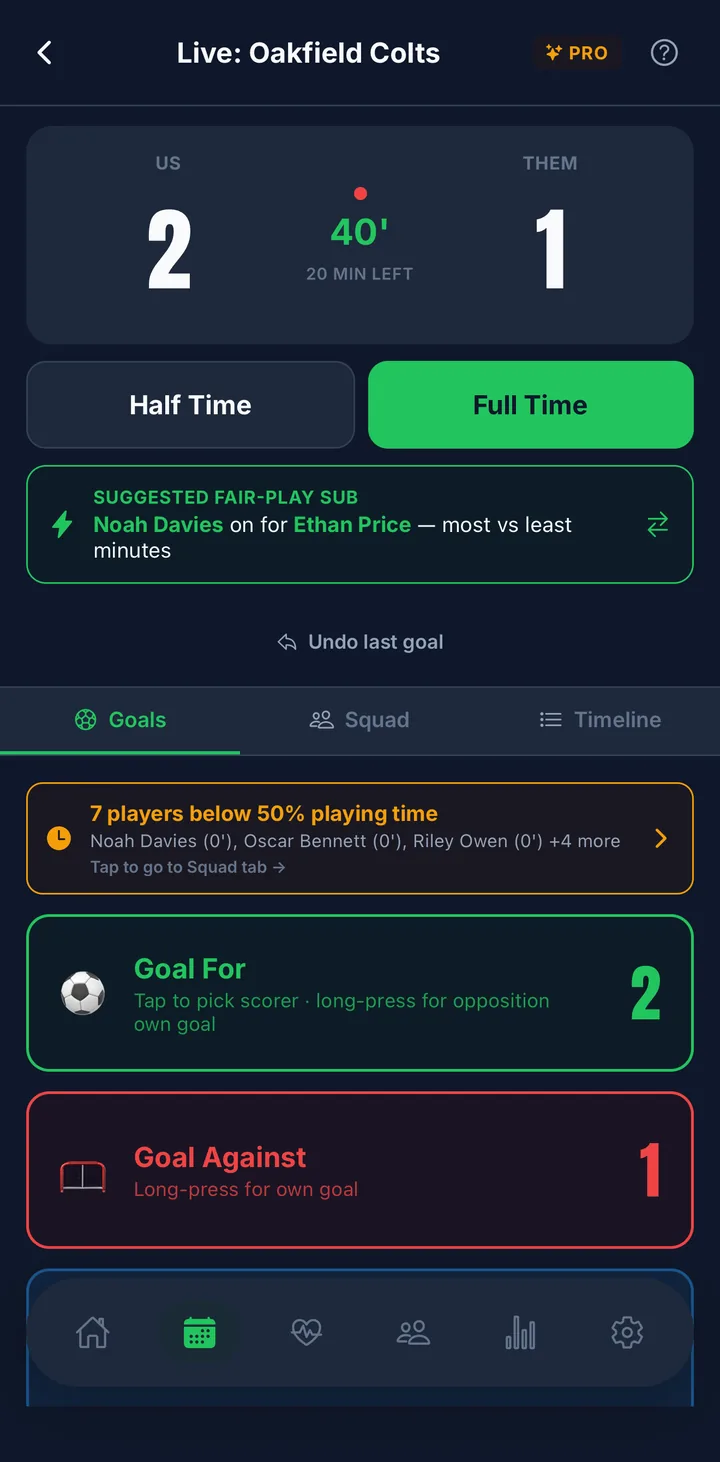
ProRun the match from your phone on the touchline. Track minutes, subs, goals and cards as they happen.
What it does
- Tap Kick Off to start the clock
- Log goals, assists, cards, substitutions in real time
- Goalkeeper saves logged with one tap (long-press for penalty saves) when Goalkeeper recognition is on
- Automatic minutes-played tracking per player across the match
- Substitution suggestions when Fair-play helpers are on (see below)
- Tap Full Time → every parent gets a push with the final score
How to use it
- Open the fixture on match day → tap Start Match. The live screen opens with the clock at zero, so it's safe to open early
- Check who's starting and who's on the bench (it comes from your match plan), then tap Kick Off when the whistle goes. Nothing counts until you do
- Tap the pitch/player buttons to log events as the match runs
Match report
Always onEverything from the match, tidied up and publishable to the newsfeed.
What it does
- Score, goalscorers, assists, cards, minutes played per player
- Saves block per goalkeeper (regular vs penalty broken out) when Goalkeeper recognition is on
- Coach can edit any event post-match (wrong scorer, missed sub, etc.)
- Publish to the newsfeed in one tap and parents see the full report in the Feed tab
- When the match summary is published, older goal-by-goal updates are cleaned up so the feed stays readable
How to use it
- After full-time, open the fixture → Match report
- Review and edit events as needed
- Pick Player of the Match and Goalkeeper of the Match, if those modules are on (the parents' vote opens by itself at full time)
- Tap Publish
Team chat
ProOne group chat for the whole team, plus a private coaches room and as many custom topic channels as you need.
What it does
- Team channel: coaches, parents and assistants in the same room
- Private coaches channel: staff-only, parents never see it
- Custom topic channels: coaches and admins spin up their own (lift-shares, end-of-season tour, a single age group); set each to everyone or coaches-only, and rename or archive any time
- Text and image messages
- Push notifications for new messages
How to use it
Tap the Chat tab. Coaches and admins tap + to start a new topic channel.
Newsfeed
Always onThe team's timeline: match reports, announcements, photos, polls.
What it does
- Coach posts text updates, polls, or announcements
- Match reports auto-publish here
- Reactions on any post: coaches can see exactly who reacted with what (useful for "did everyone see the away kit change?")
How to use it
Tap the Feed tab → + New post. Pick text, poll or image.
Season stats
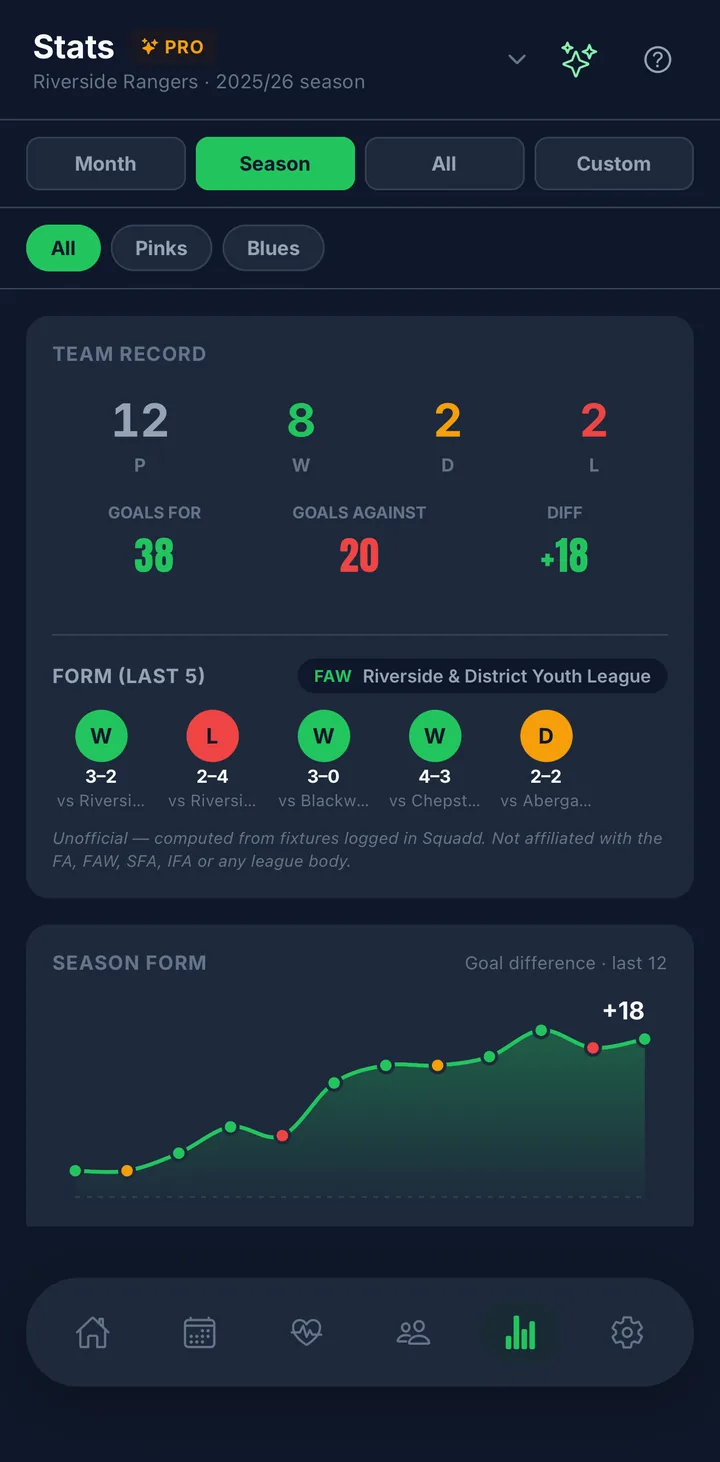
ProAuto-rolled team and player stats, derived from your match reports. Free shows your team record, form and top scorer; Pro unlocks per-player breakdowns, full leaderboards and the season form chart.
What it does
- Team record: played, won, drawn, lost, goals for / against, form guide
- Per-player totals: appearances, starts, minutes, goals, assists, cards, Player of the Match count, Parents' Player of the Match wins
- Shot tracking (optional): shots on / off target, accuracy and conversion for and against, a per-player Sharpshooter leaderboard and an expected-goals (xG) estimate. Turn on in
Settings → Team modules → Customise features - Goalkeeper columns (saves, clean sheets, GK of the Match) appear when Goalkeeper recognition is on
- Filter by side and by period (this month / this season / all time)
- Form guide (W/D/L chips) of the most recent fixtures
How to use it
Tap the Stats tab. Nothing to set up: it populates as fixtures are played.
Related setting
Settings → Team modules → Customise features → Show stats to parents is off by default. When off, only coaches/admins see the Stats tab.
Squadd Wrapped
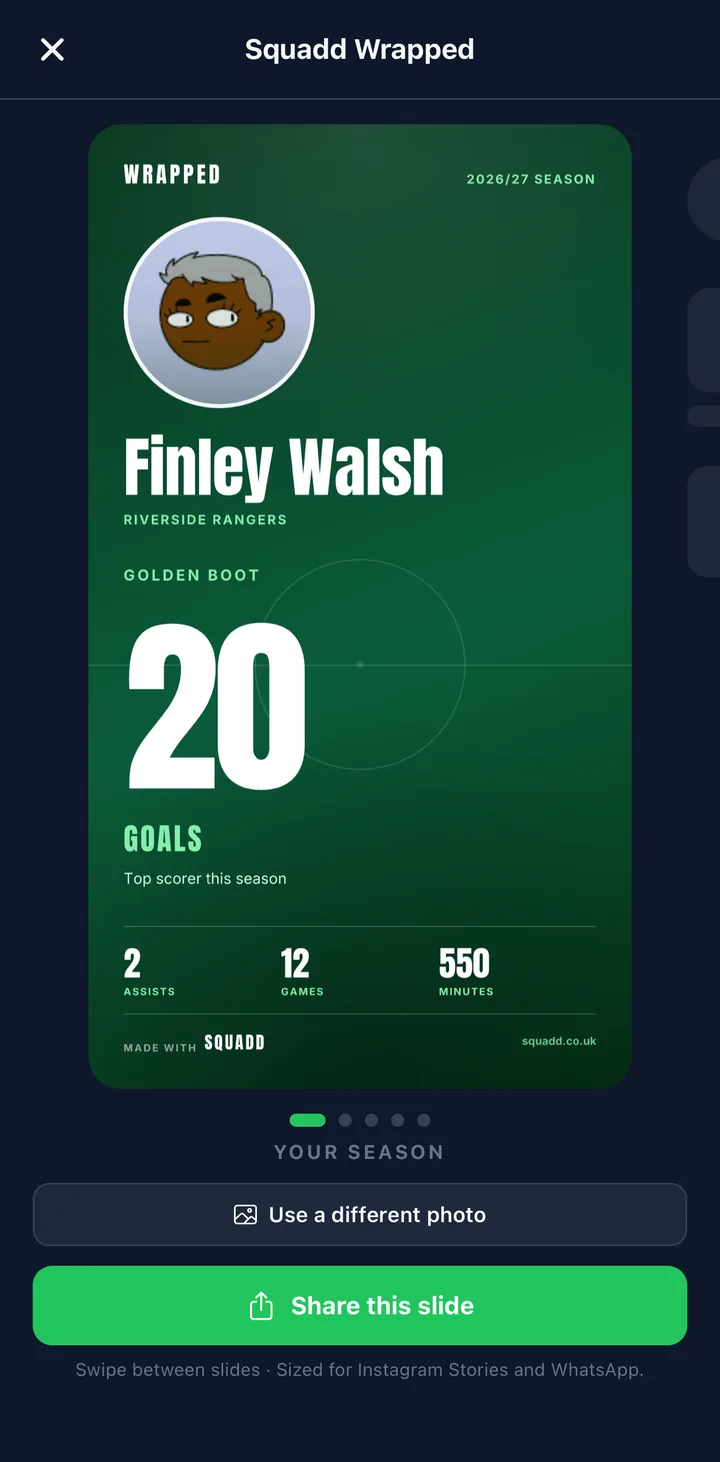
ProEnd-of-season shareable images for parents and a team summary for coaches, Spotify-Wrapped style, branded with your team name and the player's stats. The overview slide is free for every team; the full carousel is Pro.
What it does
- Per-child shareables for parents: a 4-slide carousel (overview / goals / awards / attendance) sized for Instagram Stories
- Goalkeeper-aware: if the player's a GK, the deck leads with saves and clean sheets instead of goals
- Custom photo: parents can swap in a fresh picture of their child for the share image
- Coach team summary: a single shareable with the team's record, top scorers, biggest win and clean sheets. Works per-side too if you use Team Sides
- Watermarked with the Squadd logo and squadd.co.uk so every share is also a tiny billboard
- Player ratings stay private: they never appear on any Wrapped image, even the coach summary
How to use it
- At the end of the season, the team admin flips Settings → Team modules → Customise features → Squadd Wrapped on
- Sparkles ✨ appear next to each player on the Squad tab and next to the help icon on the Stats tab
- Parents tap their child's sparkle → preview, swap photo if they like, share to Instagram / WhatsApp
- Coach taps the Stats sparkle → team summary, share to the team chat or league group
Related setting
Settings → Team modules → Customise features → Squadd Wrapped is off by default. Turn on when the season ends, off the rest of the year.
Character Sticker Book
ProCoaches award character stickers to players after each match. No Top Scorer sticker: every sticker celebrates a development quality. Players build a personal book across the season that parents can follow.
What it does
- 12 character sticker types: Effort ⚡, Never Quit 💪, Team Player 🤝, Team Lift ⭐, Brave Today 🦁, Light Bulb 💡, Great Listener 👂, Laser Focus 🎯, Most Improved 📈, Fair Play 🏆, Kind Heart 💚, and the exclusive Session Star 🌟
- Session Star is exclusive: only one player per match can receive it, so coaches choose who made the biggest overall contribution that day
- Multiple stickers per player per match: all other types can be awarded freely; a player can earn Effort and Team Player and Brave Today in the same game
- Season-long tally: stickers stack across every match. Parents see their child's book grow all season with a progress bar for each type
- Feeds into Squadd Wrapped: each player's standout sticker type and count appears in their end-of-season Wrapped image
How to use it
- Once a game has finished, open it and tap Award stickers, just under the match report button. You don't need to publish the report first. The button is on the match report too, and a match day lists every game you've played, so you can award a whole festival's stickers from the day
- One card per player: tap any sticker chip to award it, tap again to remove it
- Session Star dims out on all other players the moment a winner is chosen
- Parents open their child's sticker book from the Squad tab: press and hold the child's name, then tap Sticker book
Why no Top Scorer sticker?
Intentionally. Welsh and FAW guidance discourages outcome-based rewards at junior level (§3.3). Every sticker in the book is about the child's character and development: qualities that matter at every age, for every position, regardless of the score.
Calendar sync
Always onSubscribe to your team's fixtures and training in Apple Calendar, Google Calendar or Outlook.
What it does
- A personal iCal feed URL per user
- Every fixture and training session appears automatically in your native calendar
- Updates when times / locations change, no manual re-adding
How to use it
Settings → Add to your calendar- Copy the URL, paste it into Apple/Google/Outlook as a Subscribed calendar
Member invites
Always onSingle-tap parent onboarding via a WhatsApp-ready invite message.
What it does
- Generate short invite codes scoped to Parent, Coach or Team admin
- Quick parent invite: generates a code and copies a ready-to-paste WhatsApp message to your clipboard, then opens the share sheet
- Join notifications: every team admin gets a push the moment a new member accepts an invite, so you know straight away when a parent has signed up
- Revoke any code that's still floating around
How to use it
Settings → Invite Members- Tap Create + copy WhatsApp message
- Paste into your team group chat
Works offline
Always onPitches don't come with WiFi. Squadd keeps working when the signal drops.
What it does
- Your squad, fixtures and last-loaded data stay readable with no connection
- A quiet banner shows when you're offline, no scary error screens mid-match
- Reconnects and refreshes automatically when signal returns
Quick, secure sign-in
Always onGet in in seconds: Sign in with Apple, continue with Google, or use email. No passwords to chase.
Team modules
Everything below lives under Settings → Team modules → Customise features. Flip a switch, and the matching UI appears (or disappears) across the app. Only a team admin can toggle these.
Match-day takeover
Default: onOn match day, the home screen leads with the fixture (opponent, big countdown to kick-off, venue and live weather) so no one has to go hunting for it.
What it does
- Full-screen hero takes over the top of the feed on match day, until the match kicks off
- Shows the opponent, home/away + venue, a live countdown to kick-off, and the kick-off forecast when the venue has a postcode
- Parents with unanswered children get giant Available / Maybe / Out buttons right there: one tap each, no need to open the fixture
- Everyone else gets a View match details shortcut into the fixture screen
- Auto-dismisses the moment the match goes live, handing over to the standard live-match flow
How to disable
Some coaches prefer the standard newsfeed view on match day. Settings → Team modules → Customise features → Match-day takeover → toggle off.
Shirt numbers
Default: offAssign a squad number to each player.
How to enable
Settings → Team modules → Customise features → Shirt numbers → toggle on.
How to use it
Once on, the player edit screen gains a Number field. Numbers appear on squad rows, lineup slots and match events.
Volunteer tasks
Default: offMatch day jobs parents can claim: line marking, nets, first aid, referee, tea urn.
How to enable
Settings → Team modules → Customise features → Volunteer tasks → toggle on.
How to use it
- Open a fixture → a Volunteer tasks section appears
- Coach adds tasks (e.g. "Set up nets, arrive 09:30")
- Parents tap a task to claim it; their name shows against it for everyone else
Photo gallery
Default: offParents can share match day photos to a team-only gallery.
How to enable
Settings → Team modules → Customise features → Photo gallery → toggle on.
How to use it
Once on, fixtures gain a Photos section. Parents upload from their camera roll; photos are visible only to team members.
Subs & payments
Default: offTrack monthly subs and one-off charges (kit, presentations, tournaments). Record-keeping only: Squadd does not move money.
What it does
- Set a monthly subs amount and billing day
- Auto-generates a subs period for each player each month
- Mark periods as paid / unpaid and parents see their own child's status
- One-off charges (kit, cup entry, etc.) per player or team-wide
- Reminder pushes to parents before billing day and before one-off due dates
How to enable
Settings → Team modules → Customise features → Subs & payments→ toggle onSettings → Subs config→ set amount and billing day
How to use it
A Player subs section with a Payments row appears in Settings. Coaches see everyone; parents see only their own children.
Unpaid subs reminder bar
When a parent opens any fixture or training session and they have unpaid subs for the current month, a small amber banner appears at the top of the screen:
⚠️ Subs due: £20.00 for April. Please pay your coach
- Only visible to the parent with outstanding subs, never to other parents
- Silent once they're marked paid
- Respects the Show balances to parents switch in
Settings → Subs config: if you run subs privately among coaches, the banner never appears - Alongside this, parents get a push notification on billing day and 48h before any one-off charge is due, no nagging chat messages required from you
Player of the Match
Default: onThe coach picks one player in the match report.
How to disable
Settings → Team modules → Customise features → Player of the Match → toggle off.
How to use it
After a match, open the match report → tap Pick Player of the Match → pick a player. Their Player of the Match count appears on the Stats tab.
Parents' Player of the Match
Default: offParents vote after each match; the player with the most votes wins.
What it does
- Voting opens at full time and closes 3 hours later, whether or not the match report is published
- Each parent gets one vote per fixture
- Coach can see the full voter breakdown (who voted for whom)
- Parents see their own vote and the winner, never the counts
- Season tally: a player's Parents' Player of the Match count reflects wins, not raw votes
How to enable
Settings → Team modules → Customise features → Parents' Player of the Match → toggle on.
How to use it
Nothing to do after the match. Voting opens when you tap Full Time (or log the result) and parents vote from the match screen, one vote each. You see live counts, and who voted for whom, on the fixture screen and the match report.
Team sides
Default: offRun one large squad that splits into match-day sides (e.g. Stars / Moons / Sun): shared training, shared chat, one monthly price.
What it does
- Define named sides for your team
- Give each player a default side
- Tag a fixture with a side → lineup builder pre-filters to that side's players
- Per-week override still works via the existing Split Squad tool for crossovers / injury cover
- Stats stay rolled up at team level, with an optional side filter chip
How to enable
- On signup, if you tell us your team has multiple sides, this is switched on automatically
- Otherwise:
Settings → Team modules → Customise features → Team sides→ toggle on - A new
Settings → Sidesrow appears. Add your sides there
How to use it
- Create sides in
Settings → Sides - Assign a default side to each player in the Squad tab
- When creating a fixture, pick which side plays
- The lineup builder auto-filters to that side's players
Fair-play helpers
Default: onThe touchline nudges that make sure every child actually plays.
What it does
- Live warning when any player is below 50% playing time
- Suggested substitutions based on minutes played: Squadd picks the bench player with the fewest minutes
- Periodic reminders during a match if you haven't subbed in a while
- Like-for-like subs are a separate choice for each game: on the lineup screen, open Rotation settings and pick Respect positions so defenders come off for defenders, not strikers. You can save it as the default for all games
How to disable
Some older-age coaches don't want rotation prompts. Settings → Team modules → Customise features → Fair-play helpers → toggle off.
How to use it
Nothing to configure. When you're running a live match, banners appear at the top of the screen when a player is under-used, and the sub picker highlights the recommended player.
Golden Boot leaderboard
Default: onTop-scorers table on the Stats tab.
How to disable
Some coaches at younger age groups prefer not to highlight individual scoring. Settings → Team modules → Customise features → Season Golden Boot → toggle off.
How to use it
When on, the Stats tab shows a ranked goals table. It populates automatically from match reports.
Goalkeeper recognition
Default: offMake the child in goal feel as celebrated as the child scoring goals. Save tracking, clean sheets, and a separate Goalkeeper of the Match award.
What it does
- Save button on the live screen: tap to log a save, long-press for a penalty save. Auto-attributes to whichever GK is on the pitch (or shows a picker if a substitute is in goal because of injury)
- 🧤 pip on the GK row showing live save count during the match
- Clean sheets auto-computed from fixtures the GK played in where the opposition didn't score
- Goalkeeper of the Match: a separate award alongside Player of the Match, picked by the coach in the match report
- Stats screen columns for saves, clean sheets and GK of the Match wins
- Wrapped slides automatically lead with goalkeeper stats for any player whose primary position is GK
How to enable
Settings → Team modules → Customise features → Goalkeeper tracking → toggle on.
FAW & COMET reminders
Default: on (FAW teams only)Welsh-specific. Push notifications to coaches at the right moment to meet COMET deadlines and avoid league fines.
What it does
- Pre-game team-sheet reminder on match day: fires at 8am for U6–U11 (Mini Football submission window) or KO−3h for U12+ (so coaches can confirm inside the 15-min-before-KO league requirement)
- Post-match result reminder for the home team: fires ~30 min after estimated full-time, reminding the coach to enter the result on COMET inside the 2-hour deadline (£15 fine if late, per GCGL Rule 21c)
- Auto-skipped for U6–U11 on the post-match reminder: Mini Football has no result-submission requirement, so we don't spam coaches
- Only fires for fixtures tagged League: friendlies and tournaments don't trigger
- Goes to coaches and team admins only, never to parents
How to enable
Set the team's association to FAW in Settings → League info. The toggle then appears at Settings → Team modules → Customise features → League reporting reminders (FAW COMET), on by default.
Detailed position roles
Default: onLineup slots use specific roles (LB, CB, LW, ST) instead of broad bands (DEF / MID / FWD). Recommended for 9v9 and 11v11.
What it does
- Each slot in the lineup builder is tagged with a precise role
- Swap two players in the same line and they switch roles, so your left back and right back can trade sides
- Like-for-like subs don't depend on this module. They use the DEF / MID / FWD position on each player's profile, and you choose them per game with Respect positions under Rotation settings on the lineup screen (see Fair-play helpers)
How to disable
Prefer the broad DEF / MID / FWD bands? Settings → Team modules → Customise features → Detailed position roles → toggle off.
Team settings
Not toggles, just things you set once and forget. All under Settings → Team setup.
Default formation
Which shape new fixtures start with in the lineup builder (e.g. 4-3-3 for 11v11, 3-2-3 for 9v9). You can always change it per fixture.
League info
Your league name and association. Squadd works with FA (England), FAW (Wales), SFA (Scotland), IFA (Northern Ireland) and FAI (Republic of Ireland), so age bands, formats and association-specific extras (FAW COMET reminders, Power Play for 5v5 and 7v7 football in England and Wales) match your rules. Used on the form guide and published match reports.
Edit team details
Change team name, age group, match format or association. Useful at the end of a season: bump U10s to U11s without rebuilding anything.
Any feature you don't see here?
If we haven't built it, it's not in the app. No roadmap hand-waving. Email hello@squadd.co.uk and tell us what's missing and we'll tell you straight whether it's coming.